Quick start
Floculai is a local-first desktop workspace for developers who want a fast terminal, a real editor, git context, and AI assistance in one window.
Install Floculai
Download the Windows installer from the landing page and run it. macOS and Linux builds are planned.
Open a project folder
Choose a repository or working directory. Floculai opens a terminal, file browser, editor area, and git-aware workspace around that folder.
Run your normal commands
Use the terminal exactly as you would in your shell. Package scripts, build tools, git commands, and local servers run on your machine.
Optional: connect AI
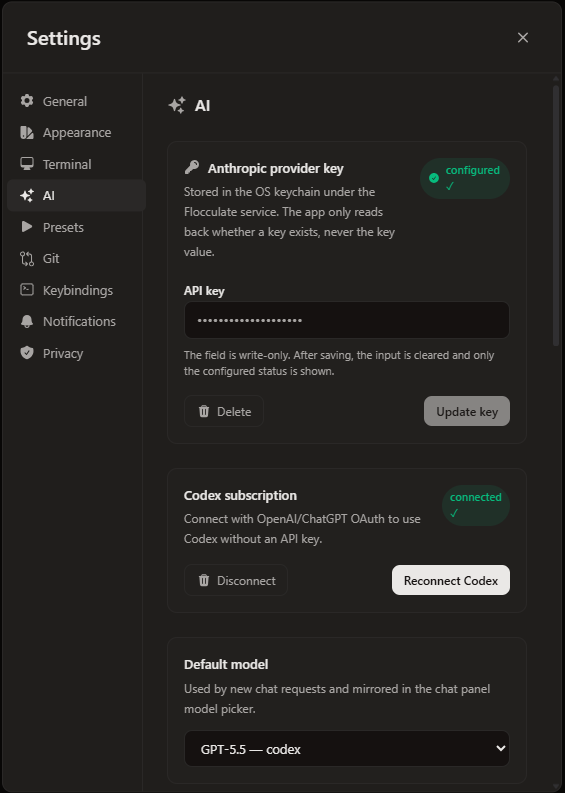
Add your own provider key — or sign in to Codex — in Settings → AI to enable chat and natural-language command completions. Grounded completions work without AI.
Install and update
Windows
- Download the latest
.exeinstaller from the Download section. - Run the installer. A per-user install does not require administrator access.
- Open Floculai from the Start menu.
Updates
Floculai checks for updates in the background after the app is ready. When an update is available, it opens a consent dialog and adds a sticky notification plus an update indicator in the status bar. Choose Update now to install and restart, or Postpone to skip the prompt for the rest of the session. Updates are never installed silently.
Uninstall
Use Windows Settings to uninstall Floculai like any other desktop app.
Workspace basics
A workspace is centered on a project folder. It combines your terminal sessions, open files, document views, git state, and AI context.

Projects rail
Switch between known project folders and see branch or status hints without leaving the main window.
Tabs and panes
Keep terminals, files, and agent conversations side by side. Tabs restore after restart so you can resume quickly.
Command palette
Press Ctrl + K to search and run any command — new tab, split, git actions, editor actions, and view toggles.
Local context
Floculai reads your project files locally so editor, git, and AI features understand the folder you opened.
Projects and workspaces
Floculai separates the folders you switch between (projects) from the working copies you operate on (workspaces). This lets you keep several branches or clones open at once without losing your terminal and editor state.
Projects rail
- Add any local folder to the sidebar as a project. Reorder projects by dragging, and remove ones you no longer use.
- Each project row shows its branch and dirty state, and Floculai auto-detects an icon from the project type.
- Open
Settings → Projectto set a custom icon, display name, notes, and excluded paths (for examplenode_modulesordist) that the file tree should hide.
Workspaces
- A workspace is the working copy a project is currently pointed at, with its own terminals, tabs, and editor state.
- Create a workspace by cloning a repository, or create a git worktree workspace to isolate a branch in its own folder while your main checkout stays untouched.
- Switch workspaces to move between clones or worktrees. Layout and tabs are restored when you return.
Terminal
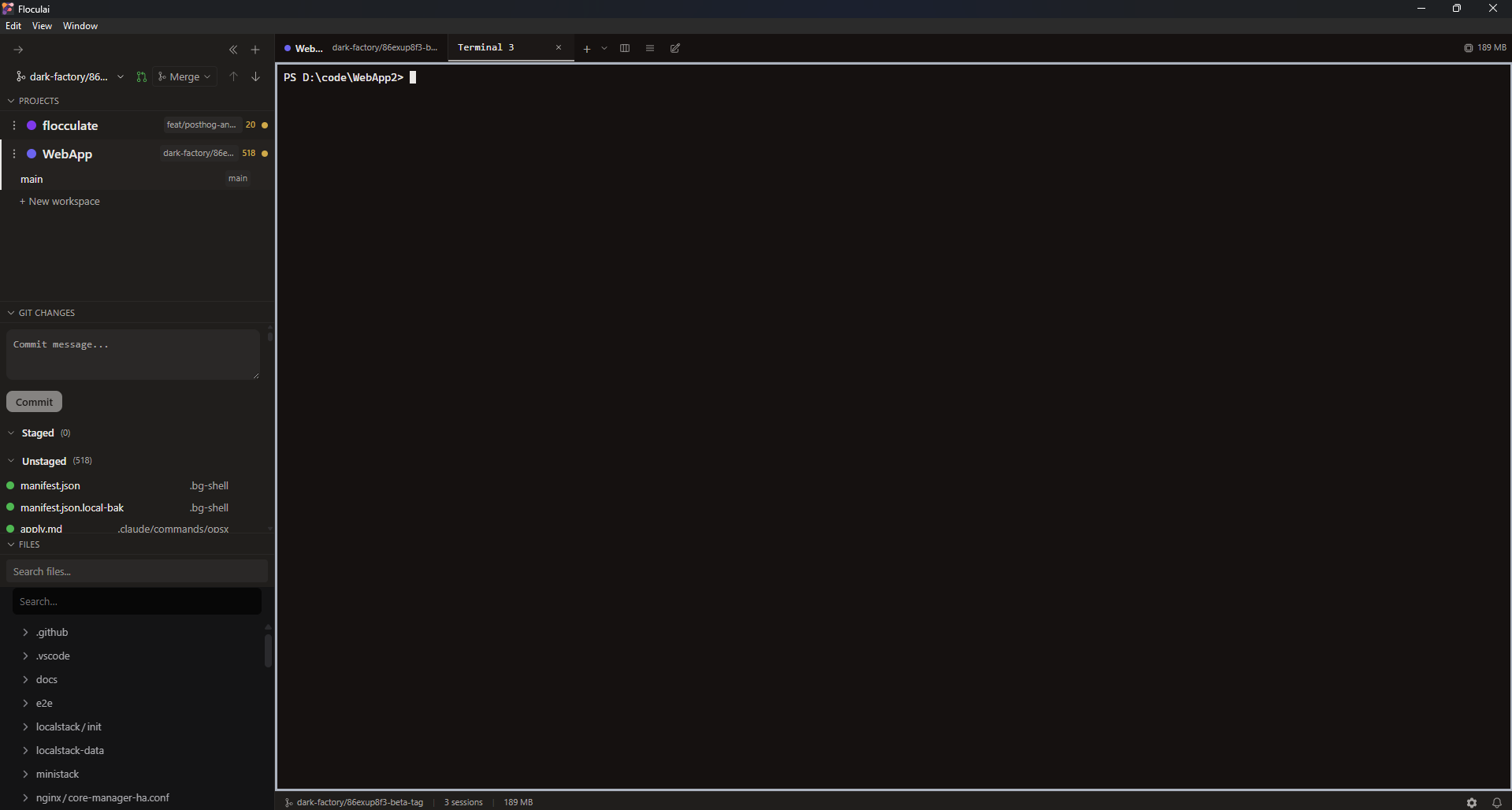
The terminal is the center of Floculai. It runs native shell processes on your machine and is designed for smooth output, resizing, and long-running commands.
Common tasks
- Run build, test, package, and deployment commands from your project folder.
- Open multiple terminal tabs for servers, logs, scripts, or git operations.
- Use shell history and the command palette to repeat commands that worked before.
- Keep terminals visible next to files or the AI panel while debugging.
Long-running processes
Development servers and watch commands continue running in their terminal tab. Stop them with your shell's normal interrupt shortcut, usually Ctrl + C.
Splitting and navigating
Split the current pane right with Ctrl + Shift + D or down with Ctrl + Shift + E, move focus between panes with Ctrl + Alt + ←/→, and find text in output with Ctrl + F.
Shell presets
Save reusable command templates in Settings → Presets — a name, command, working directory, environment overrides, and icon. Mark a preset to auto-apply so a common task like a dev server or test watcher is ready when you open a terminal.
Links
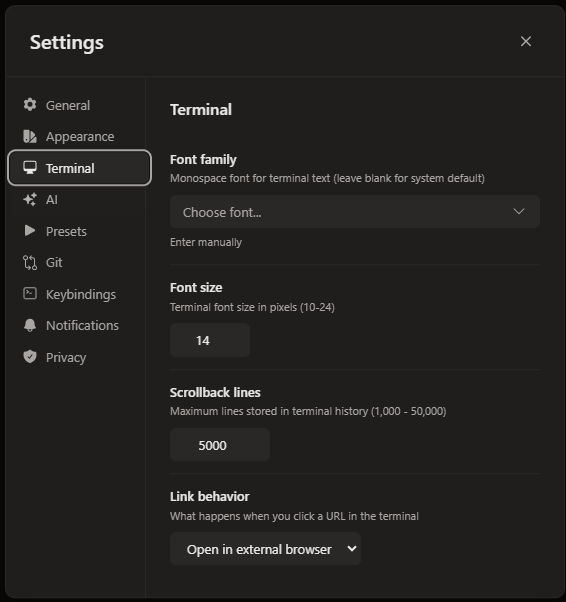
Choose how the terminal handles URLs in Settings → Terminal: open in your browser, copy to the clipboard, or disable link handling. Scrollback length and font are configured here too.
Terminal completions
Floculai has two completion systems that work together. The grounded completer runs entirely on your machine and needs no AI; the AI completer turns natural language into commands when you connect a provider.
Grounded completer
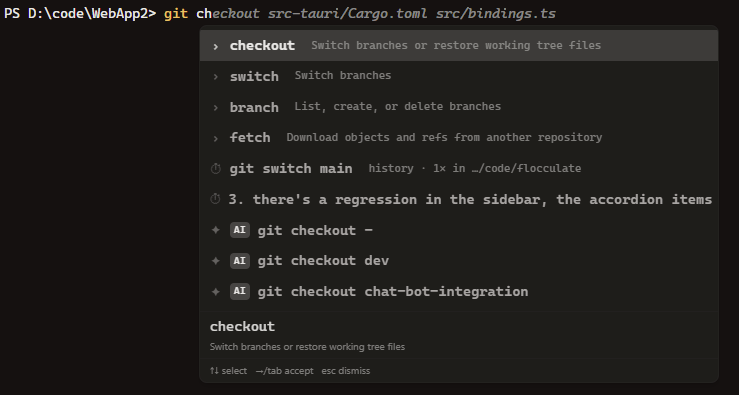
As you type, Floculai suggests completions drawn from real context: your PATH, command history, files and directories, git branches, and tool-specific data like npm/pnpm scripts, Docker containers, Cargo packages, and kubectl resources. It also reads project facts such as package.json scripts and Docker Compose services.
- Open suggestions with Ctrl + Space, or let them appear automatically as you pause.
- Ghost text: a dimmed completion appears inline. Accept it with → or End.
- This system is on by default and requires no key. Toggle it in
Settings → Terminal.
AI completer
With an AI provider connected, you can ask for a command in plain language and get a suggested shell command back. The AI completer is opt-in, gated behind a privacy acknowledgment, and can be set to trigger automatically while you type. For a one-off question from the terminal, press Alt + I to open inline Ask AI. Enable and configure AI under Settings → AI.

Command history
Floculai records the commands you run so you can find and rerun them quickly across sessions.
- Open the history picker with ↑ or Ctrl + R and fuzzy-search past commands.
- Switch the search scope between the current workspace, the current directory, and global history.
- Each entry shows its exit code and when it ran, so you can tell which attempts succeeded.
- Recording is on by default and can be turned off in
Settings → General; you can also clear stored history there.

Command palette
Press Ctrl + K to open the command palette and run any action by name. Commands are grouped by area:
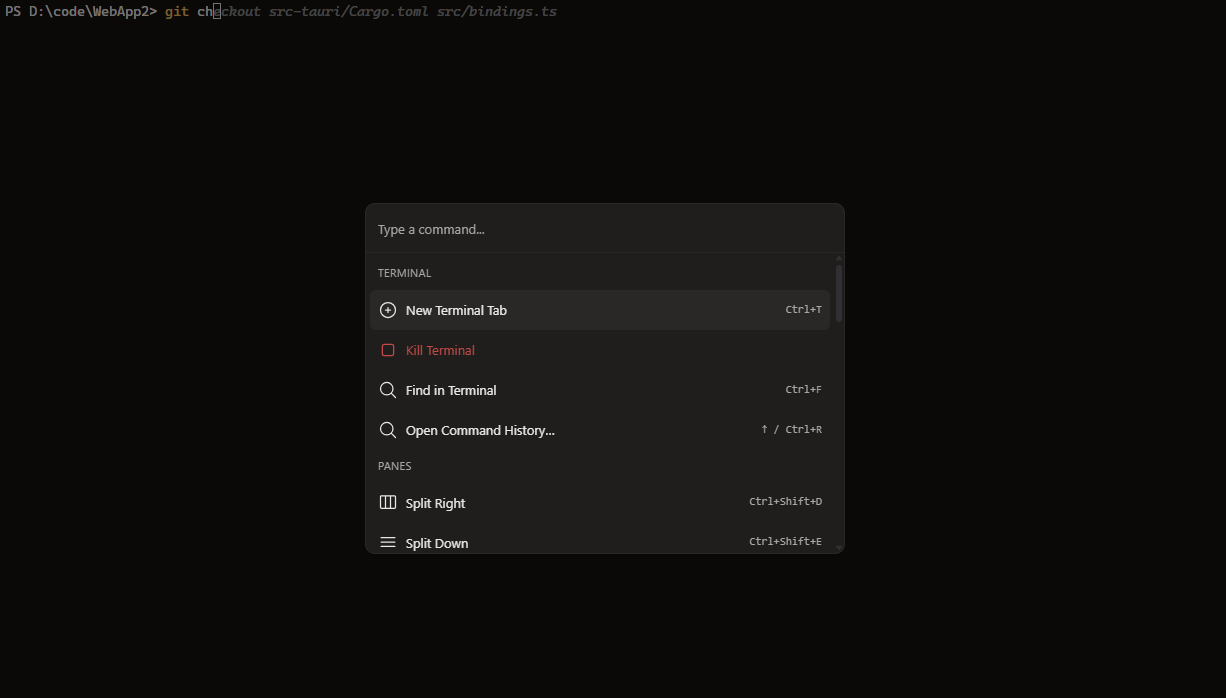
- Terminal & panes: new tab, split right/down, close or kill a pane, equalize panes, focus next/previous, find in terminal.
- Git: commit, push, pull, fetch, stage all, unstage all, create/switch/rename branch, discard all changes.
- Editor: save, open file, close active, close all, find in file, go to line.
- View: toggle the resource monitor, move or toggle the sidebar, collapse or expand sidebar sections.
The command history picker is a separate tool — see Command history.
Files and editor
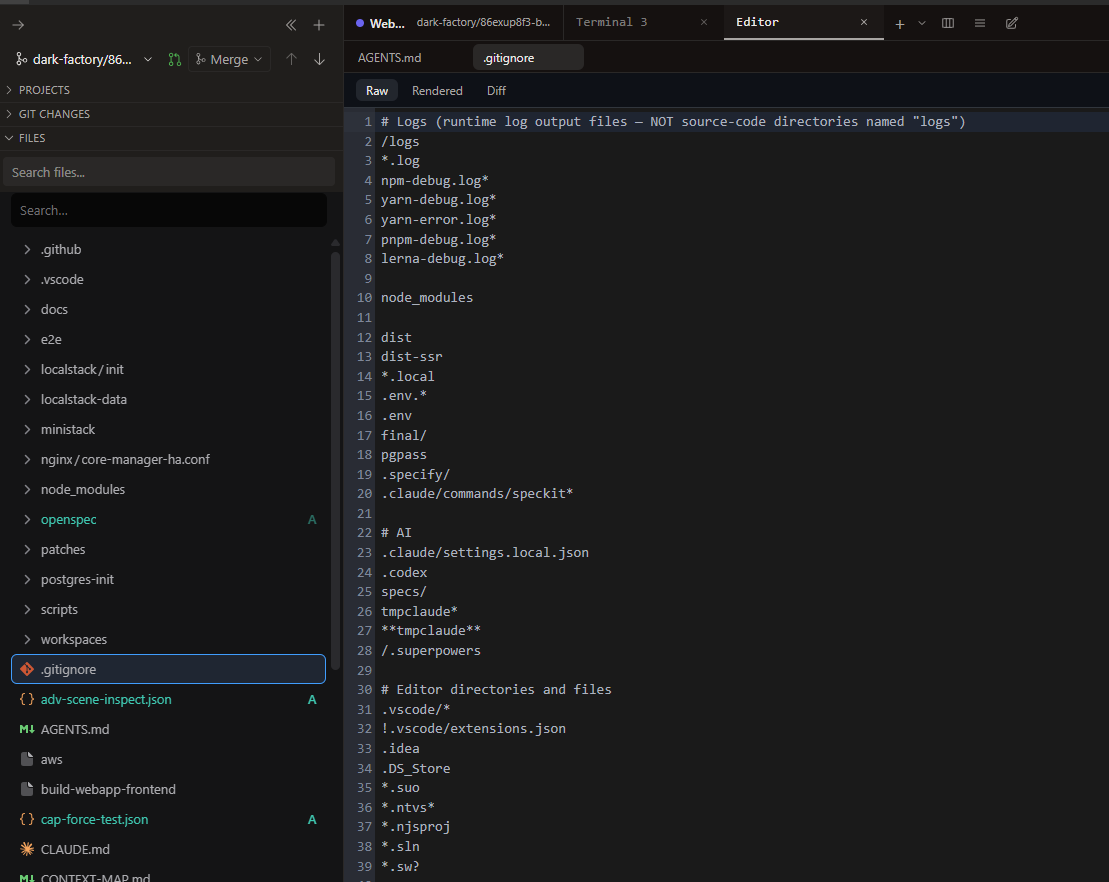
Floculai includes a real editor with syntax highlighting, filesystem watching, and different views for different file types.
File modes
- Raw: edit the source text directly with syntax highlighting.
- Rendered: preview formats such as Markdown, diagrams, and JSON.
- View: a read-only rendered view for HTML files.
- Plan, Canvas, Prototype: structured MDX surfaces for
plan.mdx,canvas.mdx, andprototype.mdx. - Diff: review changes against git before you commit or ask AI to modify more.
Editing and saving
- Open files in their own tabs; pin tabs to keep them across sessions and reorder them by dragging.
- Save with Ctrl + S, open a file with Ctrl + O, find within a file, and jump to a line from the command palette.
- Editors can sit in their own panes beside terminals, and Floculai warns you before closing a file with unsaved changes.
Finding files
Search the project from the file tree by filename or full text. Results are ripgrep-backed, and the file tree colors entries by git status. Hide noisy folders per project with excluded paths in Settings → Project.
Filesystem updates
If a tool, script, or AI agent changes a file you have open, Floculai updates the editor instead of leaving you with a stale copy.
Documents and MDX plans
Floculai supports two document workflows. HTML files open in a rendered View mode for safe review, while MDX files can open as purpose-built planning surfaces for editing, design review, and AI-readable specs.
HTML documents
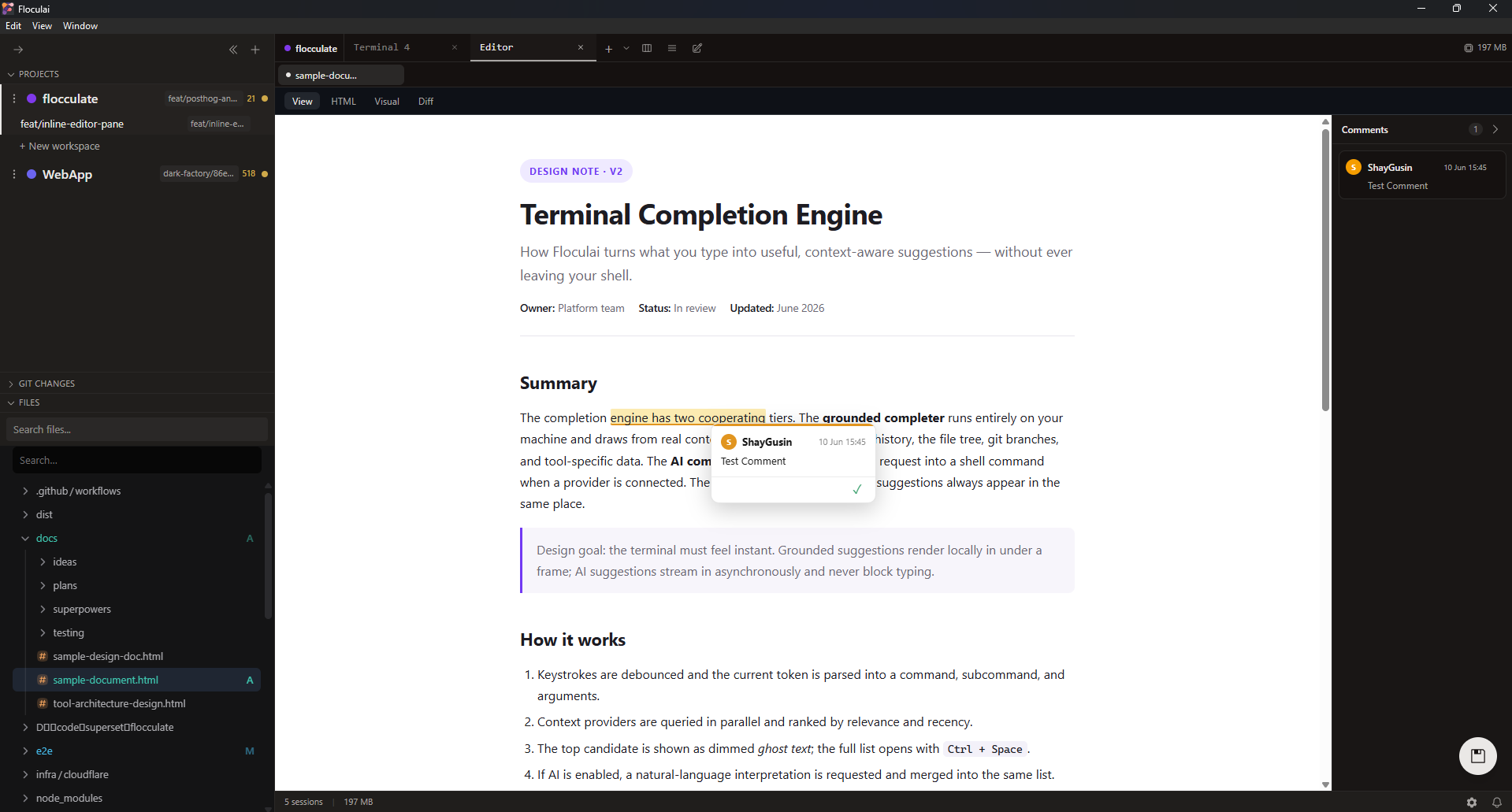
Open an HTML file in View mode for a rendered, read-only preview, or in Raw mode to edit the source with syntax highlighting. Use Diff mode to review changes against git before committing. Visual editing is available only where Floculai can preserve the document safely; otherwise stay in Raw mode.
MDX Plan mode
Open a .mdx file to use Plan mode. A file named plan.mdx shows Plan, Canvas, Prototype, Raw, and Diff tabs; canvas.mdx opens directly to Canvas, and prototype.mdx opens directly to Prototype. Other MDX files open as Plan, Raw, and Diff.
- Edit: write rich prose in-place. Registered blocks such as callouts, code snippets, Mermaid diagrams, and wireframes expose structured controls so you can change the useful fields without editing raw JSX.
- Review: switch to Review, then right-click selected text, a block, or a wireframe node to add a comment, correction, question, decision, or annotation.
- Comment rail: open review threads from the rail to jump to their anchor, reply, or resolve. Resolved threads disappear from the document but stay in the saved comments for the review record.
- Wireframes: render kit-style or design-style wireframes inside the plan, then use Canvas and Prototype files for focused design and flow views.
- Code highlighting: fenced code and Code blocks use the same editor highlighting for common web, Rust, JSON, CSS, HTML, Markdown, Python, Go, and YAML snippets.
MDX review comments are stored in a sibling .floc-comments.json sidecar next to the MDX file. Commit that sidecar when you want comments to travel with the plan; leave it out when you only want local review notes. HTML review comments are embedded directly in the HTML file instead.
AI setup
Floculai is bring-your-own-key. Connect a provider locally, then use AI features inside the same workspace where your terminal and files live. AI is entirely optional — the terminal, editor, git, and grounded completions all work without it.
Providers
- Anthropic: paste an API key to use Claude models.
- OpenAI-compatible: paste a key and, optionally, a custom base URL. This covers OpenAI-style endpoints such as Groq, Mistral, and local models.
- Codex: sign in through your browser with OAuth — no API key to store. Floculai refreshes the token for you.
Enable AI
- Open
Settings → AI. - Choose a provider. For Anthropic or OpenAI-compatible, paste your API key (and base URL if needed). For Codex, start the OAuth sign-in.
- Pick a model, then return to your workspace.
Ways to use AI
- AI completions: turn natural language into shell commands in the terminal. See Terminal completions.
- Ask AI inline: press Alt + I from a terminal to ask about recent output, selected text, or the current working directory. Answers stream in a small terminal-anchored overlay, and single-line commands can be inserted back into the shell.
- Chat panel: ask questions about code, commands, diffs, or running containers. See AI chat.
- Tools: let the model read files and list directories in your project to ground its answers.
API keys are stored in your operating system keyring (Windows Credential Manager, macOS Keychain, or the Linux secret service) where available.
AI chat
The chat panel opens as its own pane, so you can keep a conversation next to your terminal and editor. Once a provider is connected you can ask about code, commands, diffs, or anything in the open project.
- Streaming replies appear as the model responds.
- Tool use: the assistant can read files and list directories in your project to ground its answers, then refine based on what it finds.
- Model switching: change the model mid-conversation.
- Session history: conversations are saved and searchable, so you can return to earlier threads.
Review every AI-suggested change yourself before saving or committing it.
Git workflow
Floculai surfaces repository state so you can keep coding, reviewing, and committing without switching tools. Most everyday git work can be done from the UI, with the terminal always available for advanced commands.
Status, staging, and commits
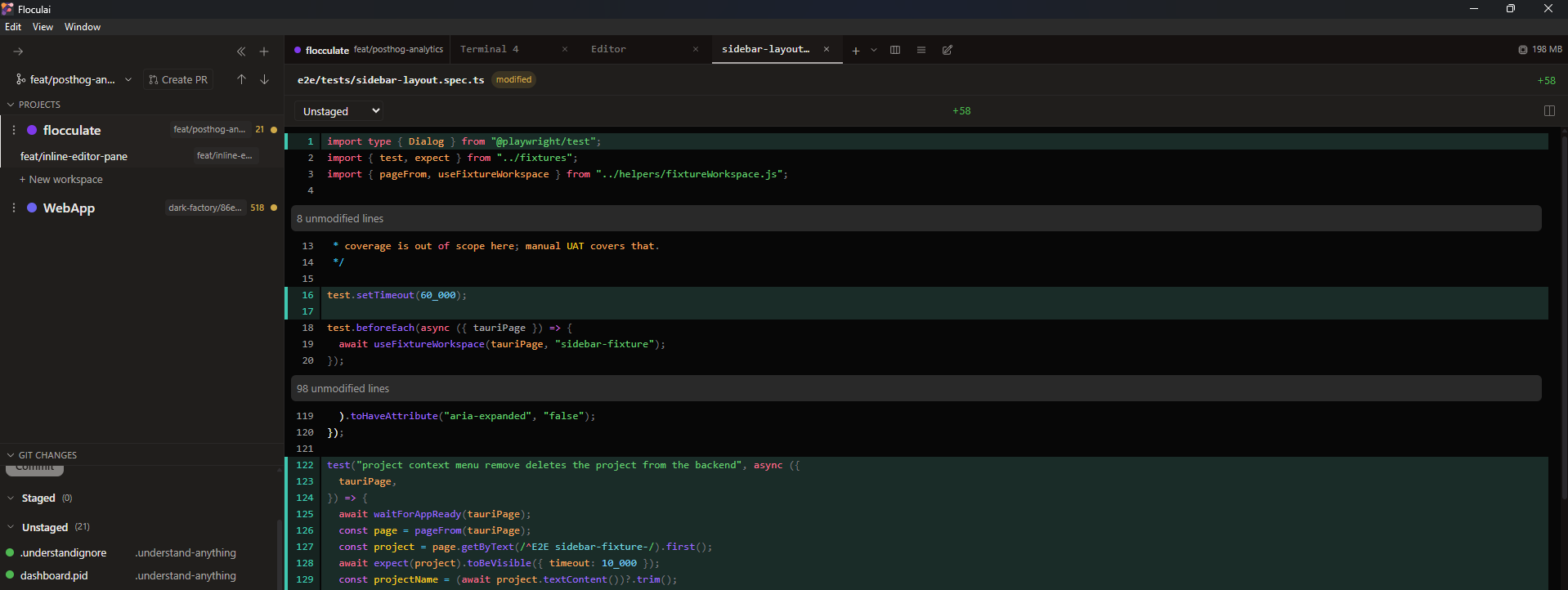
- The Git Changes section of the sidebar lists staged, unstaged, and untracked files with their change type.
- Stage and unstage by file or by individual hunk, discard changes, and write a commit message in the commit box.
- Review changes in inline or side-by-side diff views, and diff against any base ref.
Branches and remotes
- Create, switch, rename, and delete branches; see how far ahead or behind your upstream you are.
- Push, pull, and fetch from the command palette or sidebar.
- Set a branch-name prefix convention in
Settings → Git.
Worktrees and pull requests
- Create git worktrees as separate workspaces to work on multiple branches at once (see Projects and workspaces).
- Create and merge GitHub pull requests and see PR status on the current branch.
- Ask AI to explain a diff, summarize work, or help resolve conflicts — then review every change yourself before committing.
Settings reference
Settings are organized into sections. The most useful ones:
Appearance
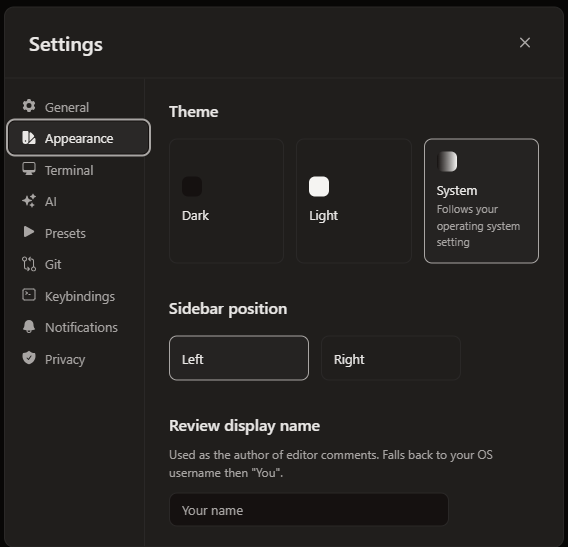
Theme (dark, light, or follow the system), interface and terminal fonts, and sidebar position.
General
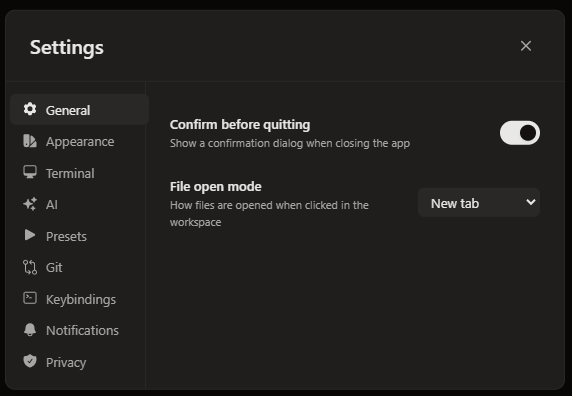
Confirm-on-quit, how files open (new tab, current tab, or external), and command-history recording.
Terminal
Font and size, scrollback length, and link behavior (open in browser, copy, or disabled).
Presets
Reusable shell command templates with working directory, environment, icon, and auto-apply.
AI
Provider keys and OAuth, model selection, and terminal-AI options.
Keybindings
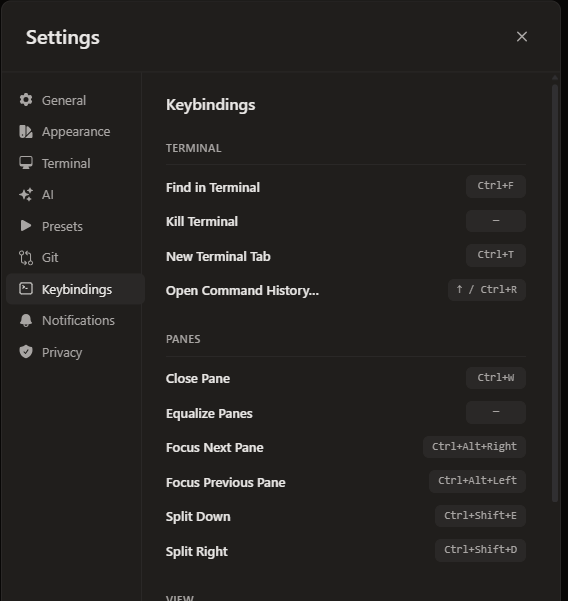
View and override the shortcut for any command.
Notifications
Toggle notification sounds and set the volume.
Git
Set a branch-name prefix convention.
Privacy
Acknowledge that prompts and context are sent to your AI provider when AI features are used.
Project
Per-project icon, display name, notes, and excluded paths for the file tree.
Shell integration
Copy shell hooks for Bash, Zsh, Fish, or PowerShell to enable accurate command boundaries and completions.
Resources
Show or hide the CPU and memory monitor in the status bar.
Keyboard shortcuts
Defaults are listed below. Every shortcut can be changed in Settings → Keybindings.
Terminal and panes
- Ctrl + T — new terminal tab
- Ctrl + Shift + D — split right · Ctrl + Shift + E — split down
- Ctrl + W — close pane
- Ctrl + Alt + ← / → — focus previous / next pane
- Ctrl + F — find in terminal
- Ctrl + Space — open completions
- ↑ / Ctrl + R — command history
- Alt + I — Ask AI inline from the focused terminal
Editor
- Ctrl + S — save · Ctrl + O — open file
Git and palette
- Ctrl + K — command palette
- Ctrl + Shift + G — commit
Privacy and data
Floculai is local-first. Your project files, terminals, and local app settings stay on your machine unless you choose to send content to an external service.
What stays local
- Project folders and files opened in the workspace.
- Terminal processes and command output.
- Saved workspace layout, tabs, and local preferences.
- Command history, when recording is enabled.
- AI provider keys, stored in your operating system keyring where available.
What may leave your machine
When AI is enabled, prompts and selected context are sent to the provider you configured. Review your provider's data policy before sending confidential code or documents.
Troubleshooting
The installer is blocked by Windows
Confirm the installer came from the official release link. If SmartScreen appears, choose More info, then Run anyway.
A terminal command is stuck
Use Ctrl + C in the terminal. If the process does not exit, close that terminal tab and reopen a new one.
AI suggestions are not appearing
Check that a provider key is saved (or that you are signed in for Codex), your internet connection is available, and your provider account has quota. For terminal AI, confirm it is enabled and the privacy notice acknowledged in Settings → AI. If needed, remove and re-add the key.
Codex sign-in did not complete
Codex uses a browser OAuth flow. Make sure the browser tab finished redirecting back to Floculai, then check the status in Settings → AI. Sign out and start the flow again if the token did not save.
Completions or history look incomplete
Install the shell hooks from Settings → Shell integration for your shell. They let Floculai detect command boundaries and exit codes, which improves both completions and command history.
A rendered document looks wrong
Switch to Raw mode to inspect the source. For complex HTML, use Raw mode until Visual mode can safely round-trip the structure.
Need help?
Report issues on GitHub or contact hello@floculai.com.